
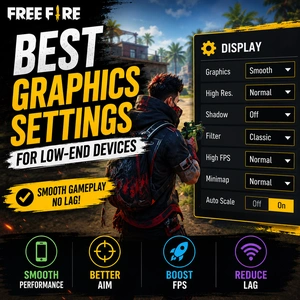
Introduction
Many Free Fire players use low-end Android devices that struggle to maintain smooth gameplay during matches. Problems such as lag, frame drops, overheating, delayed movement, and unstable aiming often happen because of incorrect graphics settings.
Optimizing graphics settings is one of the easiest ways to improve gameplay performance without upgrading the device. Balanced settings reduce system load, improve FPS stability, and create a smoother gaming experience.
This guide explains the best graphics settings for Free Fire on low-end devices and provides practical tips for improving gameplay performance.
Learn about How to Reduce Lag in Free Fire on Android Device and this makes your gameplay fast and smoother.
Why Graphics Settings Matter in Free Fire
Graphics settings control visual quality, shadows, effects, and overall game performance. High settings require more processing power and RAM, which can create lag on weaker devices.
Balanced graphics settings help:
- Improve FPS stability
- Reduce frame drops
- Lower device heating
- Improve touch response
- Create smoother gameplay
Players should focus on stable performance instead of maximum visual quality.
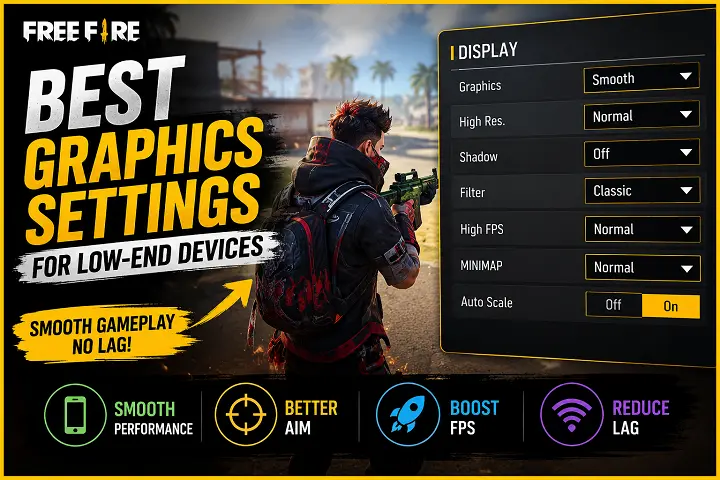
Best Graphics Settings for Low-End Devices
Graphics Quality
The Smooth graphics option reduces GPU load and helps improve FPS consistency during matches.
High FPS Mode
Enabling High FPS mode improves gameplay smoothness and reaction speed. However, if the device overheats quickly, players can switch to Normal FPS.
Shadow Effects
Shadow effects must be off because it consume extra processing power and may reduce performance on weaker devices.
Auto Scale
Disabling Auto Scale prevents unnecessary graphics adjustments that may create unstable performance.
Brightness Settings
Very high brightness may increase device heating and battery usage during long gaming sessions.
Also learn about How to Install and use Clt pane Free Fire and make your gamelay load faster then ever.
Best Performance Tips for Low-End Devices
Clear Background Applications
Background apps consume RAM and processing power. Before starting Free Fire:
- Close unused applications
- Restart the device if necessary
- Disable unnecessary background services
Keep Free Storage Space Available
Low storage can reduce Android performance.
- Keep at least 5GB free storage
- Clear cache regularly
- Remove unnecessary files and apps
Reduce Device Heating
Overheating often causes FPS drops and touch delay. To reduce heating:
- Avoid charging while gaming
- Lower screen brightness
- Remove thick phone covers
- Take short breaks between matches
Use Stable Internet Connection
Unstable internet can create gameplay delay and high ping. For better stability:
- Use reliable Wi-Fi
- Avoid background downloads
- Stay near the router
Recommended Device Optimization Settings
For smoother gameplay, players should:
- Enable game mode if available
- Update Android software regularly
- Keep Free Fire updated
- Disable battery saver while gaming
- Avoid multitasking during matches
Common Mistakes That Reduce Performance
- Using Ultra Graphics on Weak Devices: High graphics settings overload low-end hardware and reduce FPS stability.
- Ignoring Device Maintenance: Unused files, excessive cache, and outdated software can slow down device performance.
- Playing While Charging: Charging during gameplay increases heating and may reduce device performance.
- Running Too Many Apps Simultaneously: Multiple background applications reduce available RAM for gaming.
How Graphics Settings Affect Gameplay
Balanced graphics settings improve:
- Aim stability
- Movement smoothness
- Reaction speed
- Visual clarity
- Touch responsiveness
Conclusion
Choosing the best graphics settings for Free Fire on low-end devices can significantly improve gameplay performance, FPS stability, and overall gaming experience.
Instead of focusing only on visual quality, players should prioritize smooth gameplay, stable controls, and device optimization. Proper settings and regular maintenance help low-end devices run Free Fire more efficiently.
Frequently Asked Questions
Which graphics setting is best for low-end devices in Free Fire?
Smooth graphics settings usually provide the best balance between performance and stability on weaker Android devices.
Does High FPS mode improve gameplay?
Yes, High FPS mode can improve gameplay smoothness and reaction speed if the device supports stable performance.
Why does Free Fire lag on low-end phones?
Lag often happens because of weak hardware, overheating, full storage, background apps, or unstable internet connection.
Can graphics settings affect aiming performance?
Yes, smoother FPS and stable gameplay improve aiming accuracy and reaction timing.
How can I reduce heating while playing Free Fire?
Players should avoid charging while gaming, reduce screen brightness, and keep the device cool during long sessions.